
Labour time
Start and finish times, less the recorded break, establish working time. Review travel separately when it is entered. The timesheet displays working, travel and total payable hours.
Field & crews · Timesheets
A drainage crew can work across two jobs in a day and use several machines along the way. Fieldlink keeps the worker’s time, job allocation and plant usage in the same record, ready for office review.
Record the day on site. Review the hours in the office. Keep payroll preparation and job costs connected.
01 / Construction timesheets
For earthworks, roading and utility work, the office needs to know which job used the labour, what happened during the shift and which plant was used. A total on a Friday spreadsheet leaves those questions open.
Fieldlink records the worker, date and job with start and finish times, breaks, notes and plant usage. Separate entries can keep work on different jobs distinct. Travel segments have their own times and locations where that entry type is used.
02 / Construction timesheets
Worker hours represent labour and payable time. Plant usage records equipment use alongside the shift. An excavator can be used for only part of a worker’s day; those machine hours are not extra paid worker hours.
Start and finish times, less the recorded break, establish working time. Review travel separately when it is entered. The timesheet displays working, travel and total payable hours.
Record equipment and its usage separately. The office can inspect the recorded plant hours without changing the worker’s paid labour hours.
If a worker has 8 payable hours and records 5 hours using an excavator, that is 8 worker hours and 5 plant hours — not 13 paid hours. This is an illustrative calculation, not a customer result.
03 / Construction timesheets
Record the work against the job it belongs to. Use a separate entry when work needs a different job allocation.
Enter start, finish, breaks and useful notes. Add plant usage and any supported travel segments, keeping those measures distinct.
The crew submits the entry. The office can filter by worker, job, date and status to find pending or rejected entries.
Check the job, payable hours, break and plant details. Resolve an incorrect entry before including it in payroll preparation.
Review approved hours for the relevant period. Xero Payroll NZ requires a connection and employee, earnings-rate and calendar mappings. Check sync results before relying on the hand-off.
04 / Construction timesheets
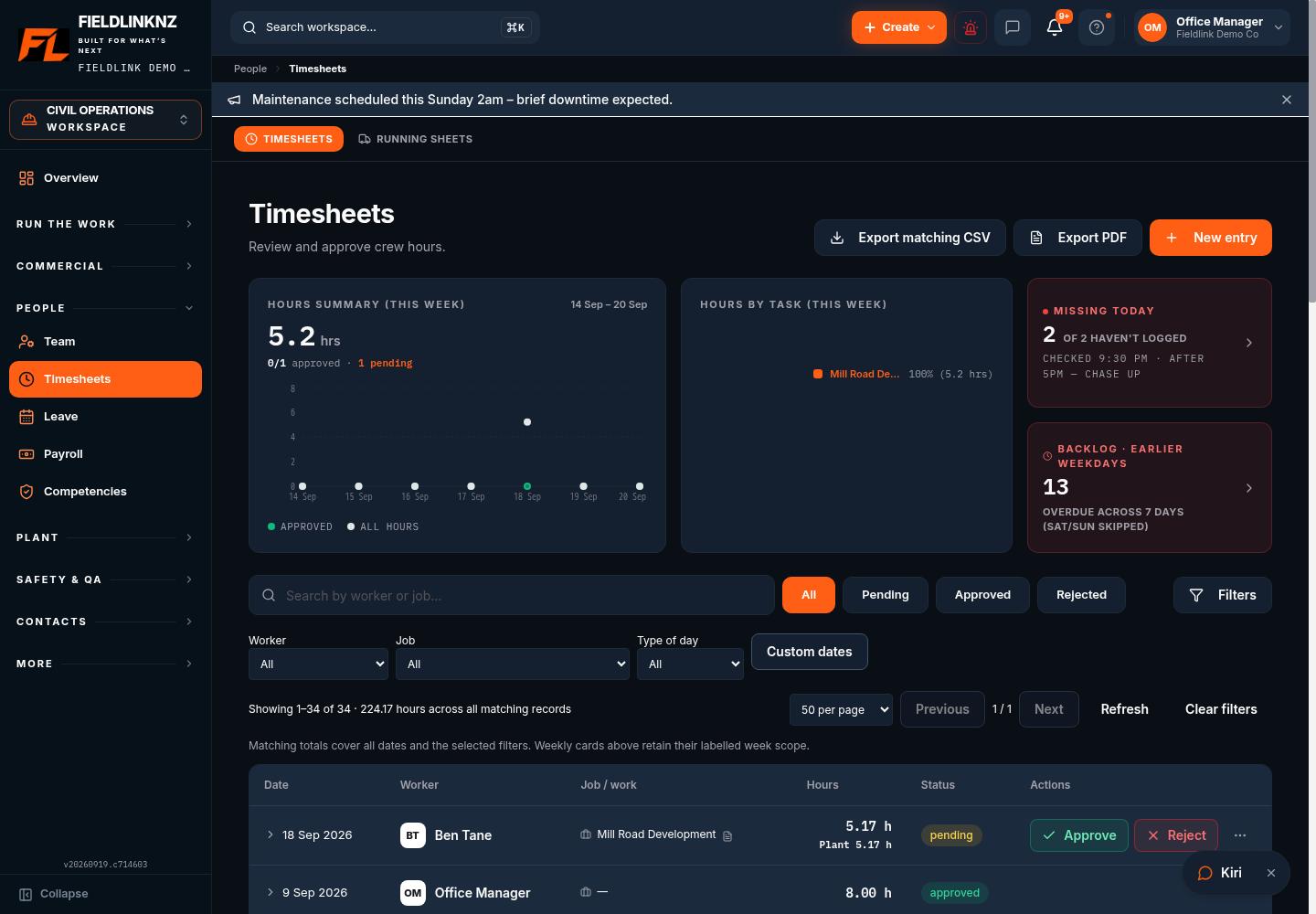
The Timesheets register brings pending, approved and rejected entries together. Office users can filter the records and inspect individual entries, including breaks, notes and plant information.
Weekly summary cards and filtered register totals answer different questions. Check the period and filters before using an export. Approval is an office decision; a planned shift alone is not evidence of hours worked.
05 / Construction timesheets
Workers can open Fieldlink in a mobile browser or add the PWA to their home screen. The timesheet entry supports work recorded against a job, with the office able to review the submitted record.
Supported timesheet writes can queue if the network fails, and previously loaded data can be cached. Reconnect to send queued work and review failures. This does not mean every screen, clock action or newly opened job works without a connection.
06 / Construction timesheets
Agree the job names, who approves entries and how to record work that crosses jobs. Check worker rates and payroll mappings with the person responsible for payroll.
For a first pay period, compare the submitted and approved entries with your existing records. Check breaks, travel and machine usage separately. Resolve discrepancies before moving the rest of the crew away from paper or spreadsheets.
NZ civil contractors, drainage crews, earthworks operators and construction teams that need job-linked hours and office approval.
If you only need a personal timer, the wider job workflow may be more than you need. If you need a standalone payroll engine or a particular award/compliance guarantee, confirm that requirement with your payroll provider.
Before you start
Yes. Use separate job-linked entries for the work on each job. The office should check those entries together so the day’s labour and any travel are allocated correctly.
No. Plant utilisation is recorded separately from paid labour hours. Equipment usage can contribute to job costing without becoming extra payable time for the worker.
Working time uses the recorded start, finish and break. Supported travel entries record their own start, finish and locations; no working break is deducted from a travel segment. The office reviews whether travel should be billed to the customer.
No. Scheduling is the plan. A timesheet records the work and has its own submission and approval process.
Yes, with Xero Payroll access and the relevant employee, earnings-rate and pay-calendar mappings configured. Review the selected period, approved hours and sync outcome before finalising payroll.
The timesheet and payroll-preparation workflow supports recording and review. Your organisation remains responsible for employment arrangements, payroll settings and the final pay run. Check your specific requirements with your payroll adviser.
For the full office-to-field workflow, explore Fieldlink job management. Find practical tools and guides in the Civil Hub.
Use the existing trial to work through job-linked entry, office review and your payroll hand-off.